How to Turn Off Instagram Comments (2026 Guide)
Learn exactly how to turn off Instagram comments on posts, Reels, Stories, and Live videos. Quick step-by-step instructions with troubleshooting.
You can turn off Instagram comments, but only per post, not for your whole account. That means the main job is choosing the right post, the right moment, and the right moderation level before the noise starts.
A launch announcement, a sensitive brand statement, or a post likely to attract trolls can all justify that choice. When the comment thread matters more than the post itself, I've found it's better to control the conversation than to spend the next hour cleaning it up.
Table of Contents
- Why You Need to Turn Off Instagram Comments
- How to Turn Off Comments on New Instagram Posts
- How to Disable Comments on Reels, Stories, and Live Videos
- How Exerta Can Help
- Important Reality About Global Comment Controls
- Alternatives to Turning Off Comments Completely
- When Comment Filters Matter More Than Disabling Comments
- Quick Troubleshooting and Best Practice Recap
Why You Need to Turn Off Instagram Comments
A launch post goes live and the first replies are bait, not questions. A public statement needs room for real discussion, yet spam fills the thread before anyone on your team can answer. A controversial industry post draws bots, arguments, and copy-paste reactions faster than useful feedback.

Instagram lets you disable comments on individual posts, not for the whole account. That option has been available since Instagram added the feature in December 2016, which gave brands a direct way to control moderation on a post-by-post basis (ABC 15).
For social teams, that matters most when a post carries more risk than upside. If the message is time-sensitive, reputationally sensitive, or likely to attract bad-faith replies, you can shut off the thread without changing the rest of the account. If you want a broader reset on how you use social platforms, this guide on how to completely declutter social media is a useful companion.
Practical rule: turn comments off when the post needs message control more than it needs public debate.
How to Turn Off Comments on New Instagram Posts
A launch post is ready, but you still need control over the replies. For a new feed post, open the composer, tap Advanced Settings, and switch Turn Off Commenting on before you publish. If the post is already live, open the post, tap the three dots in the top right, and choose Turn Off Commenting.
Instagram's Help documentation covers this post-level control, and the practical part is timing. If you schedule content through another tool, the comment setting may need to be set before the post is handed off for publishing. Teams often assume they can adjust it after the fact, then find the first comments have already started coming in.
What to check before you publish
- Draft status: make sure you are editing the actual post, not a saved draft.
- Menu path: use Advanced Settings before publish, or the three-dot menu after publish.
- Re-enable option: if the campaign tone changes, you can turn comments back on later.
- Workflow timing: scheduled posts need the moderation choice built in early if your process does not allow changes after publishing.
The fastest teams treat comment settings like captions, hashtags, and location tags, something to decide before the post goes live.
That matters most during launches and campaign windows, when cleanup in the comments slows down the people managing the message.
How to Disable Comments on Reels, Stories, and Live Videos

Reels, Stories, and Live each use a different control path, so one setting will not cover every format. I see teams miss this when they publish across formats in the same week and assume a single moderation choice applies everywhere.
For Reels, open the Reel while editing or after it is live, tap the three dots, and choose Turn Off Commenting. For Stories, open the Story camera, use the sticker tray or camera settings to select Turn Off Commenting or Hide Replies before posting. If the Story is already live, tap the three-dot menu and open Story settings to change reply controls. For Live videos, start the broadcast, open the comment controls during the session, and turn comments off or filter them while the stream runs.
Instagram keeps these controls separate by format, which is why moderation has to match the content type. A Reel can be locked down while a Story still accepts replies, and a Live session can still pull in spam even if your feed posts are quiet. The trade-off changes with volume, too. Smaller accounts can often shut comments off completely, while larger accounts usually get better results by using comment filters instead of wiping out every reply.
If your team is producing a lot of short-form video, this guide on scheduling short-form videos efficiently helps because comment settings are easiest to manage before the content goes out.
Useful shortcut: set comment controls as part of the upload process for each format, not after comments start landing.
That keeps moderation consistent when several people are working from the same calendar.
How Exerta Can Help

If your problem isn't just “how do I turn comments off,” but “how do I manage engagement without losing revenue opportunities,” Exerta is built for that middle ground. It deploys AI agents to handle customer engagement across Facebook, Instagram, TikTok, and website chat, with replies to comments and DMs, moderation of harmful content, and sales recovery flows that can move buyers toward checkout. The system also logs and attributes actions, which matters if your team needs visibility into what got answered, hidden, or escalated.
That makes it relevant for DTC and ecommerce brands, telehealth, lead-gen businesses like insurance or solar, coaches, and the agencies running paid social for them. In those environments, turning comments off everywhere is often too blunt, because some comment sections drive sales while others invite spam or off-topic noise. Exerta's moderation rules, brand-voice replies, and workflow builder are meant to help teams keep the useful parts of engagement while reducing the manual load.
One practical resource worth reading is Exerta's guide on how to hide Instagram comments, especially if you're deciding between suppression and full shutdown. That distinction matters, because a hidden comment thread and a closed comment thread solve different problems.
Quuu is another option if your broader need is social publishing across channels, but it's a different category. Exerta is closer to an engagement and recovery layer, useful when comments, DMs, and follow-up messages are part of the revenue path rather than just a moderation task.
Important Reality About Global Comment Controls
Instagram comment settings stay granular, not account-wide. You can manage comments on a post, Reel, Story, or Live session, but there is no single switch that closes them across your whole profile.
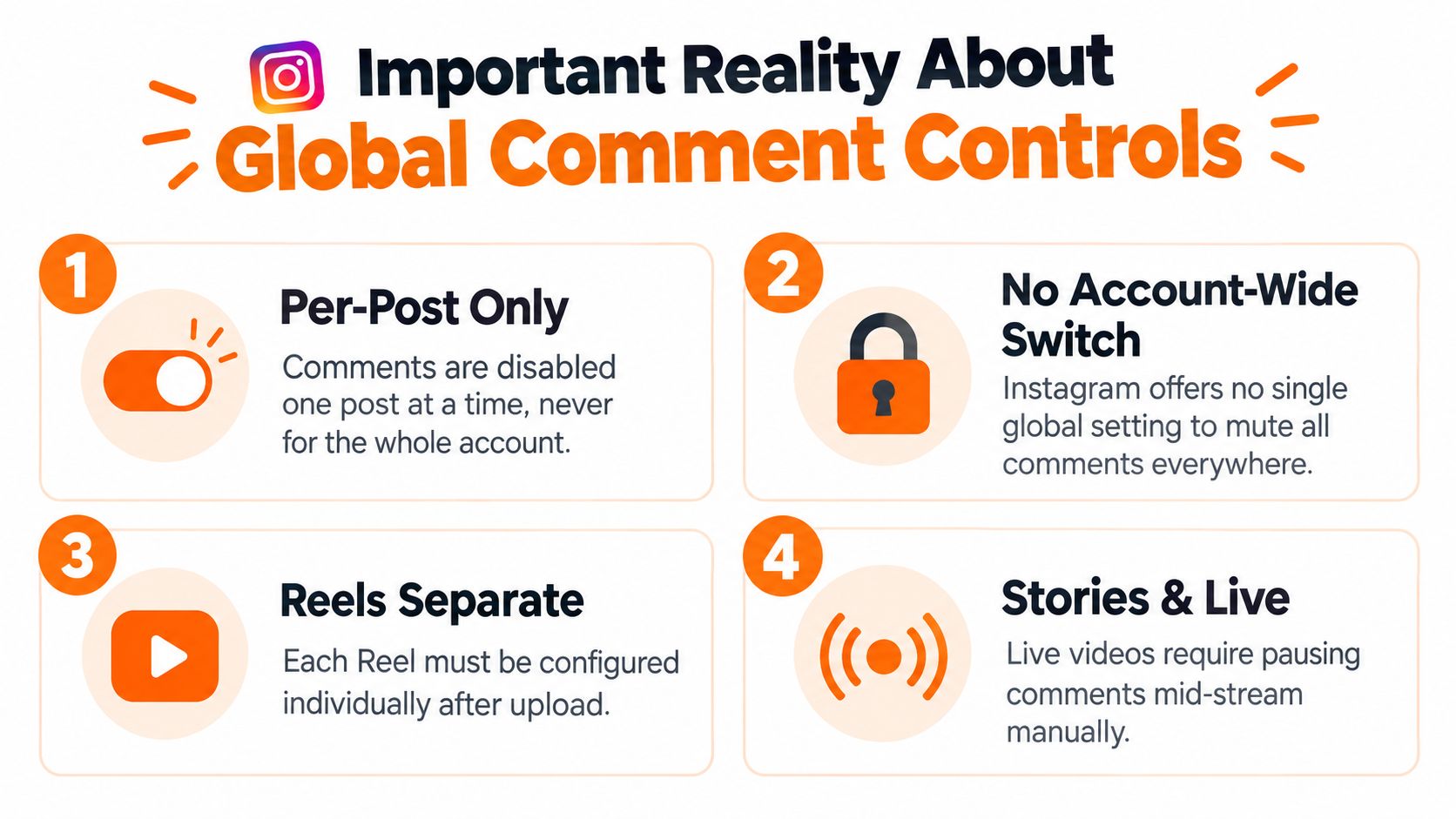
That is why teams working in multiple markets should keep a shared publishing note for each format. Before someone posts, they should know whether comments stay open, get filtered, or need to be shut down for that specific asset. Instagram's own help docs should sit beside that process, so the team is not guessing from memory when a new format or control appears.
The practical rule is simple. Close comments on sensitive posts. Use lighter moderation when the post is likely to draw noise but still benefits from discussion. Leave comments open on live sales or community content, then monitor closely so useful replies stay visible while spam gets handled fast.
Alternatives to Turning Off Comments Completely
Sometimes a full shutdown is too heavy-handed. If you still want engagement, Instagram gives you narrower controls that target specific people or specific language instead of removing the comment section entirely.
Restrict is the first option worth knowing. It prevents restricted users from seeing when you're online and stops you from receiving notifications for their comments, but it doesn't stop them from commenting in the first place (Instagram Help). Comment filtering is different again, because it hides comments containing offensive terms rather than preventing them from being posted.
How the three options differ
| Option | What it does | What it does not do |
|---|---|---|
| Turn off comments | Removes the comment section for that post | Does not keep engagement open |
| Restrict | Lowers visibility and notification pressure from specific users | Does not stop them from commenting |
| Comment filtering | Hides comments with offensive terms | Does not prevent the comment from being submitted |
That distinction matters operationally. If your issue is one hostile user, Restrict is cleaner than closing comments for everyone. If your issue is profanity or spam language, filtering is the lighter touch. If the post itself is sensitive, disabling comments is still the safest move.
Use the smallest control that solves the actual problem.
That's especially true for brands that want to preserve conversation while still keeping moderation workload under control.
When Comment Filters Matter More Than Disabling Comments
For larger creators and brands, the better question isn't always whether to turn comments off. It's whether the newer filtering and sorting controls make it practical to keep comments open without letting the thread degrade.
Instagram expanded comment filters for accounts with over 100,000 followers, with sorting by top engagement, recency, follower count, and tabs for people you follow, verified users, or paid subscribers (Storyy). That creates a very different moderation decision for larger accounts than for smaller ones, because the most useful replies can be surfaced while lower-quality noise stays out of the way.
For smaller accounts, that option set is thinner. So the advice to “just use filters” isn't universal, and it shouldn't be treated like a blanket replacement for disabling comments. I'd frame the choice like this:
- Large account with active discussion: filters may be enough to keep the thread usable.
- Sensitive announcement: full comment shutdown still makes sense.
- Ongoing harassment from specific users: Restrict is more precise.
- Normal post with mild spam risk: filters plus monitoring is often enough.
If you're trying to decide whether the thread needs to be closed or curated, a sentiment workflow can help you read the room faster. This internal guide on social media sentiment analysis fits neatly into that decision-making process.
The practical takeaway is simple. For bigger accounts, filters can reduce the need to disable comments entirely, but they don't replace it. For smaller accounts, the decision still leans more heavily toward post-level shutdown when the topic is sensitive or likely to attract bad-faith replies.
Quick Troubleshooting and Best Practice Recap
If comments aren't turning off, the most common problem is the wrong control path. Check whether you're editing the right format, because feed posts, Reels, Stories, and Live videos don't all use the same menu. Also confirm you're not stuck in a draft or preview state, since settings can behave differently before publishing.
The second issue is timing. If the post is already live, you need the post menu. If it hasn't gone out yet, the change may need to happen in Advanced Settings before publishing. Teams that schedule content should test that path once before a sensitive campaign goes live.
A clean decision framework keeps this from becoming a weekly fire drill.
- Use full comment shutdown for sensitive announcements, legal-adjacent topics, or posts that attract abuse.
- Use filters and Restrictions when the issue is specific users or specific language.
- Leave comments open when the thread is part of the value of the post and you can monitor it properly.
That's the balance on Instagram now. Comment controls are available, but they're scattered across formats and intended to be used deliberately. If your team posts often, make the moderation choice part of the upload checklist so the decision is made once, clearly, before the post is public.
If your team is managing Instagram at volume, build a simple publishing rule this week, decide when comments stay open, when they're filtered, and when they're shut down. Then test it on your next launch or sensitive post, so moderation becomes a repeatable workflow instead of a last-minute scramble.